Understand the Big Picture
Flight Simulator allows you to experience the physics and mechanics of flight in both contemporary and historical
aircraft. The computer models that Flight Simulator uses for each aircraft's handling characteristics, speeds, and
aerodynamics are taken from real-world specifications. In addition to a fleet of realistic aircraft, Flight Simulator also
includes more than 24,000 real-world airports, from large urban internationals to small grass strips. Between these
landing places, you'll fly high above realistic renditions of real-world terrain, landmarks, scenic wonders, and full-scale
cities.
Although it may seem daunting at first, Flight Simulator also offers a wealth of content and features that can open the
doors to its realistic world.
The User Interface
In order to understand Flight Simulator, start by getting a basic understanding of the user interface. It may help to
think of Flight Simulator in terms of two interfaces: the game shell and the in-game interface.
The Game Shell
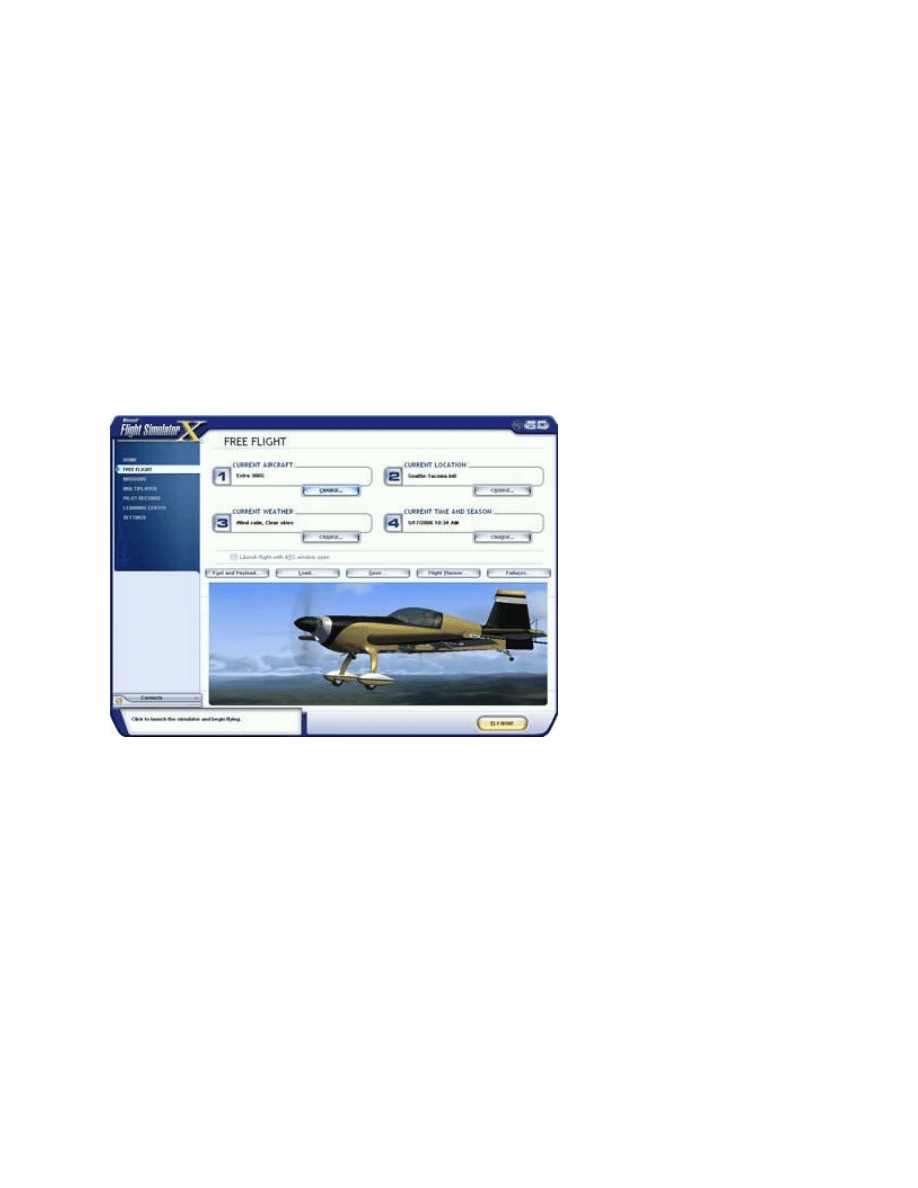
The game shell appears when you start Flight Simulator. This part of the interface includes a navigation bar along its
left side, which you use to access the simulator's various top-level features. Think of the game shell as your base of
operations; it's from here that you'll create flights, select Missions, learn about flying, and access all of the helpful
content described below.
Home
If you have an Internet connection, Home provides news and information about Flight Simulator. Click Home on the
left side of the screen.
Free Flight
Free Flight is the classic Flight Simulator playground, where you create your own flight by choosing the type of
aircraft, weather location, time and season, and other variables. You can make your flight as fun, as relaxing, or as
challenging as you want. You can even save the flights you create and fly them again later.
Missions
Missions are flights that provide a wide range of experiences in all parts of the Flight Simulator world and in all of the
aircraft. Unlike flying in Free Flight, Missions have audio and events that add variety and complexity to the
experience. Missions are designed to challenge anyone, from novices to Flight Simulator veterans but they require
varying degrees of knowledge and proficiency to complete. To learn more, see All About Missions.
Multiplayer
You can act as a Flight Simulator air traffic controller or share the aircraft with another pilot over the Internet or a
LAN. Direct other pilots from the control tower in multiplayer mode or observe air traffic from an air traffic controller's
perspective. The multiplayer Tower feature provides a highly realistic level of air traffic control interaction in Flight
Simulator.
How about live instruction on any aspect of flying or using Flight Simulator? You can give or receive instruction with
another pilot or friend over the Internet or a LAN using Flight Simulator's Shared Aircraft feature.
The Learning Center
The Learning Center offers a wealth of information about using Flight Simulator's many rich features. Although you
navigate through the Learning Center like a Web site, you do not need to be connected to the Internet in order to
access its articles. Each article includes links connecting you to related topics that help you continue exploring.
The Learning Center includes four tabs:
Key Topics is a visual guide to Flight Simulator's major themes
Site Map offers a comprehensive table of contents to the Learning Center's articles
Index offers Learning Center articles organized like the index of a book
Lessons take you step-by-step through aviation training
Lessons
With renowned flight instructor Rod Machado, the Lessons offer ground school courses, starting with the most basic
Student Pilot Rating material and progressing through the skills needed to fly the largest jumbo jets. After each
lesson, you'll take to the skies to practice what you've just learned. Click the Learning Center on the left-hand menu,
then click the Lessons tab.
Settings
This section of the game shell lets you adjust Flight Simulator to suit your preferences, and to maximize your
computer's performance. To learn more about settings, see Options in the Learning Center Key Topics.
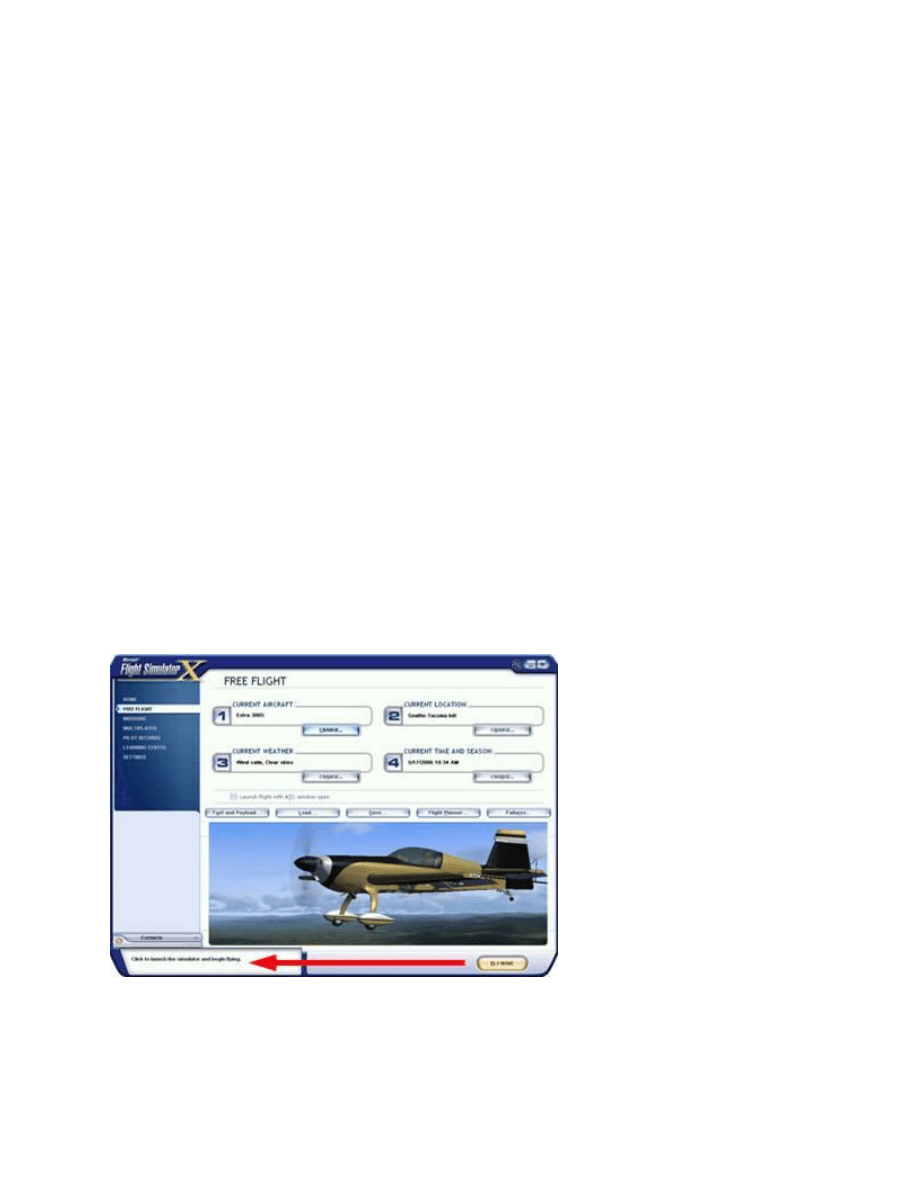
Rollover Help
When you move the pointer over the buttons and controls in the game's screens and dialog boxes, descriptive text
called rollover help appears in the lower-left corner of the Flight Simulator screen. Rollover help is useful for
identifying shell elements and their functions.
In the image above, with the cursor on the Fly Now button, the rollover help for that button appears to the left.
Dialog Boxes
The game shell's dialog boxes contain buttons, check boxes, sliders, and other elements that let you define Flight
Simulator options. For example, on the Free Flight screen shown above, clicking the Current Aircraft/Change
button displays the Select Aircraft dialog box.
The In-Game Interface
After you click Fly Now! in the game shell's Free Flight, Missions, Multiplayer, and Lessons screens, Flight
Simulator's in-game interface takes over; you're now in the Flight Simulator world. By default, you're sitting in the
cockpit of your selected aircraft with the instrument panel and windshield in front of you. From this vantage point, you
can quickly access important information.
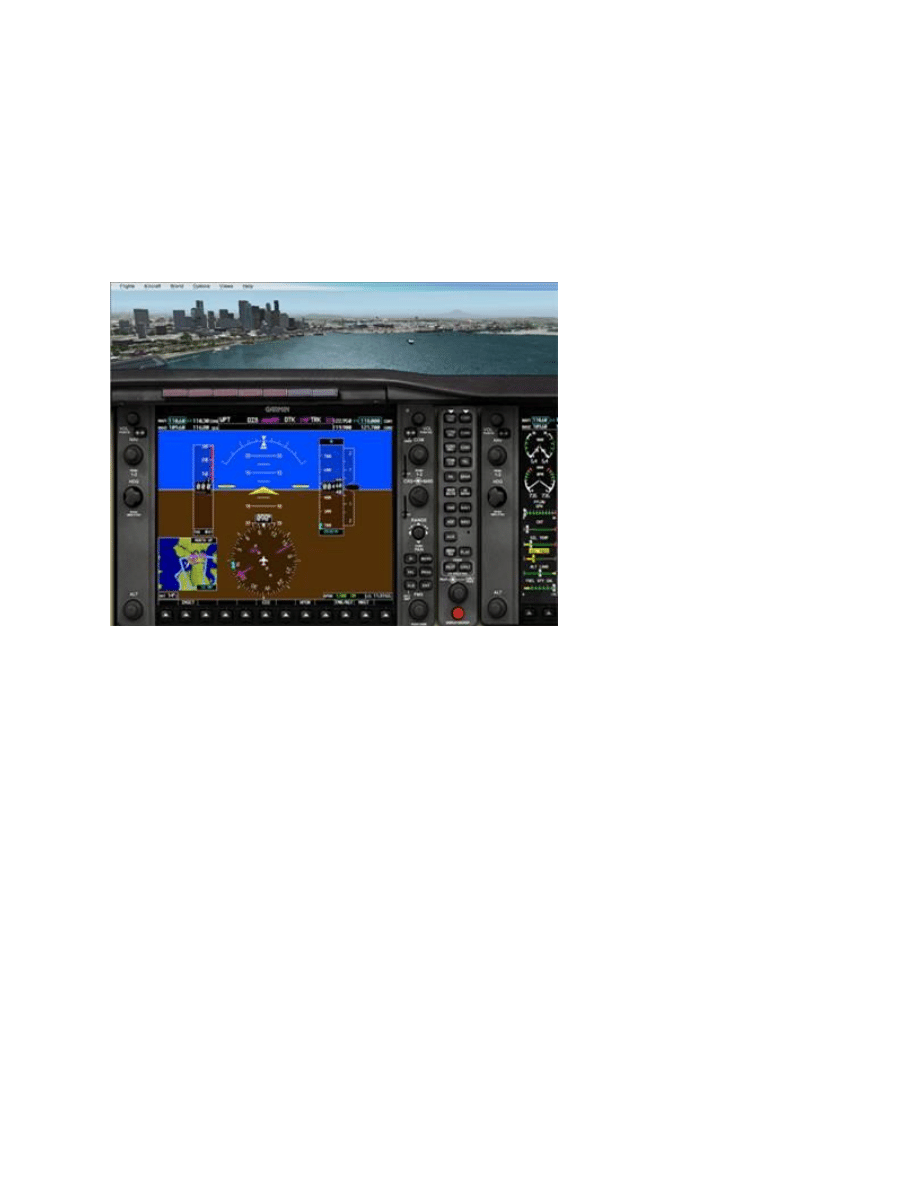
The instrument panel, the world, and the menu bar
The Panel
The aircraft instrument panel fills the foreground in the default view unless you choose to hide it. You can hide the
panel or switch between three other views.
The World
Beyond the panel and your aircraft's windshield lies the Flight Simulator world. Flight Simulator models the entire
world, including real-world cities and more than 24,000 real-world airports.
The Kneeboard
Many real-world pilots use a kneeboard to hold charts and notes during flight. Likewise, Flight Simulator includes an
electronic kneeboard that contains useful information for you to use while flying.
The kneeboard for the Cessna 172
The kneeboard contains:
The aircraft checklist
Mission briefings
Important airspeeds
Air Traffic Control transcripts
Navigation log
Key commands shortcuts
Mission objectives
To display or hide the kneeboard
Press SHIFT+F10.
ToolTips
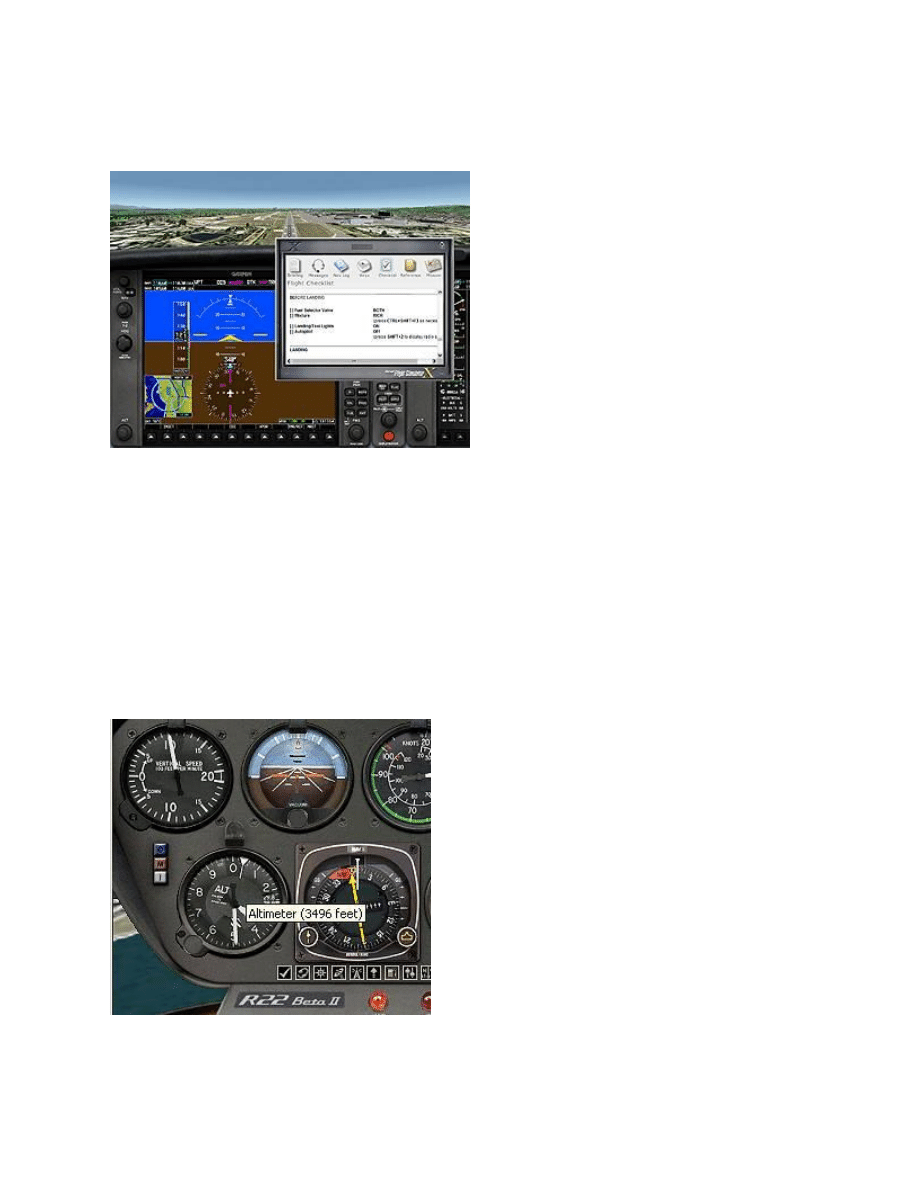
The altimeter and its dynamic ToolTip
When flying an unfamiliar aircraft, all those dials and buttons on the aircraft panel may seem intimidating. To increase
your familiarity with a new plane, move the pointer over any panel item and wait for its ToolTip to appear.
Dynamic ToolTips in the cockpit also show the current readings for various instruments. For example, when you point
to the altimeter, its ToolTip will display not only the altimeter's name, but also the current altimeter reading.
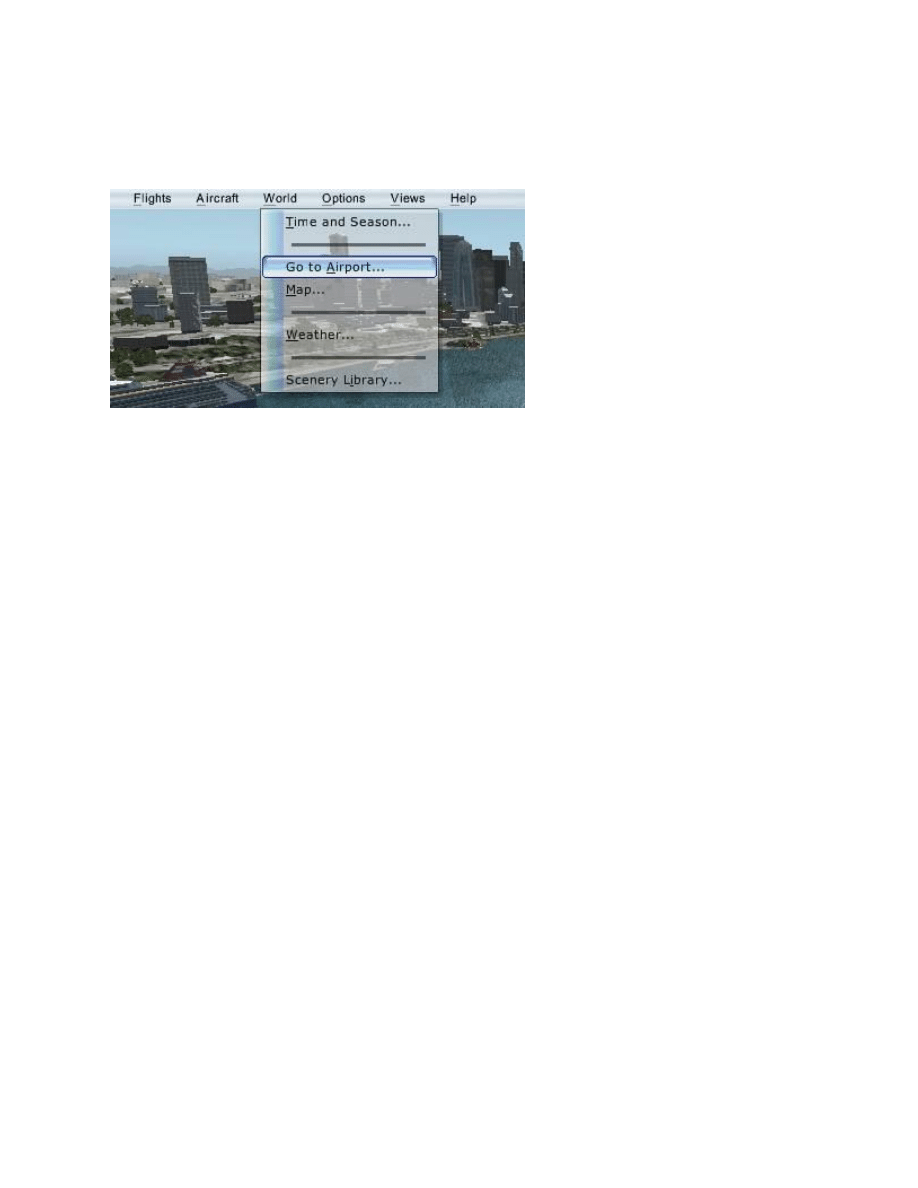
In-Game Menus
Press ALT to display the menu bar.
Flight Simulator's menu bar works like menu bars in other programs. When running the simulator in full-screen mode,
the bar is hidden; press the ALT key to display the menu bar. Click a menu name, and then move the pointer over
menu items and click to select.
Wyszukiwarka
Podobne podstrony:
The Big?ng Theory
Stephenson, Neal The Big U
Understanding the misunderstood Art from different cultures
Zizek The Big One Doesn't Exist
Living in the big city isn
The Big Chill
Stephenson The Big U
Garlic Goodness Understanding the benefits of garlic
Nanocosm Nanotechnology and the Big Changes Coming from the Inconceivably Small, 2005, p 320
The big fight (bolszaja rozpierducha)
Understanding the effect of violent video games on violent crime S Cunningham , B Engelstätter, M R
Isaac Asimov Lucky Starr 03 And the Big Sun of Mercury
The Relation Between Learning Styles, The Big Five Personality Traits And Achievement Motivation
The Big Black Mark A Bertram Chandler
The Moving Picture Boys on the Coast by Victor Appleton
Year of the Big Thaw Marion Zimmer Bradley
Big Picture Life After Sil
więcej podobnych podstron